

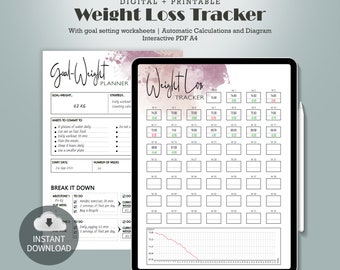
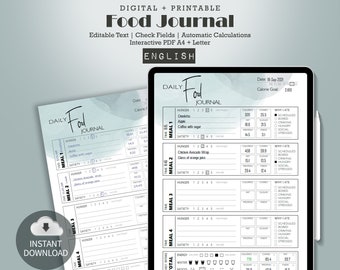
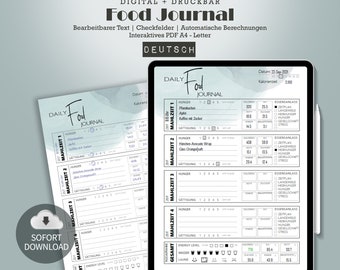
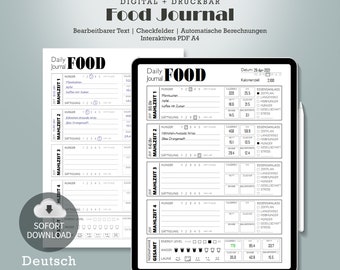
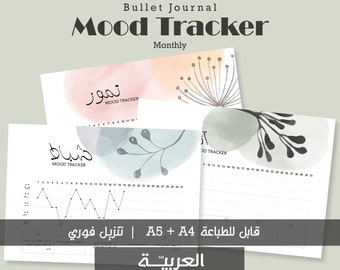
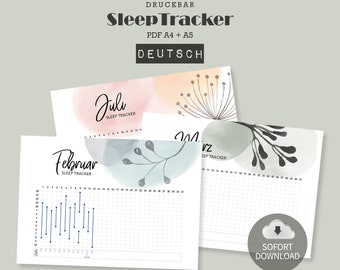


Multitasking needs ORGANAISING!
All items
Announcement
Last updated on Sep 20, 2021
Reviews
4.9
(92)
Average item review
We calculate this number using a recency-weighted average of all ratings, with a rating's value decreasing by half each year to best reflect the current experience.
Loading
-

Kelly on Aug 21, 2025
5 out of 5 starsWe love this tracker and all the information it includes/ skips. It was perfect for what we were looking for.
-

-

Andina on Dec 9, 2024
5 out of 5 starsIm in Love with this item. This is a great addition to my fitness journal.
-
Heather on Oct 15, 2024
5 out of 5 starsI found it hard to find a daily log that included the details I needed. This one does a perfect job!
-

-
-

Karen on Feb 27, 2024
5 out of 5 starsI like the fillable form to track my daily meals. I want to give a huge thank you to Reem for her help in getting me up and running with using the form.
-
Keri on Feb 25, 2024
5 out of 5 starsItem is what was expected. I received it immediately. Can’t wait to start my new healthy me journey!
-
-

Shop policies
Last updated on May 3, 2021
Digital downloads
Instant downloads
Your files will be available to download once payment is confirmed. Here's how.
Payment options
Secure options
Accepts Etsy Gift Cards and Etsy Credits
Etsy keeps your payment information secure. Etsy shops never receive your credit card information.
Returns & exchanges
See item details for return and exchange eligibility.
Cancellations
Cancellations: not accepted
Please contact the seller if you have any problems with your order.
More information
Last updated on
Dec 17, 2025
Frequently asked questions
I bought an item. How do I download it?
• Ensure to log in to your account.
• Click on the button “Your account”. This shows a list of options.
• Click on “Purchases and reviews”.
• Locate the purchase you want to download (you can use the search bar for that).
• Click on “Download files”.
• Click on the “Download” button located next to each file you want to download.
• You can probably find the downloaded files in the Downloads folder (on Windows)
• Need more info? Check the full instructions here: http://etsy.me/2HeXnVb or contact me directly. I would be happy to help!
I have downloaded a planner. How can I open it?
First, save the file to your local computer. Afterwards, you can open it with any PDF file reader. Examples of free PDF readers include: Adobe Acrobat Reader (download it here: https://get.adobe.com/reader/), and Foxit Reader (download it here: https://www.foxitsoftware.com/pdf-reader/ ).
I have downloaded a planner. How can I print it?
• Open the PDF file using your favorite PDF reader (see question above). Examples of readers that support filling in editable fields include Adobe Acrobat Reader (download it here: https://get.adobe.com/reader/), and Foxit Reader (download it here: https://www.foxitsoftware.com/pdf-reader/ )
• Press Ctrl + P (Windows)
• In the print dialog, ensure that the content is automatically fit to the selected paper size, and the desired paper size and printer are selected.
• Still facing printing issues? For Acrobat Reader users, follow this link: https://helpx.adobe.com/reader/using/print-pdfs.html. For Foxit Reader users, find the user manual here: https://cdn01.foxitsoftware.com/pub/foxit/manual/reader/en_us/FoxitReader10.1.1_Manual.pdf
The planners are printed too big or too small. What can I do?
• In the printing dialog, ensure that the option “Fit to printer margins”(Foxit Reader), or “Fit” (Acrobat Reader) is selected
• Ensure that the option to center the page is selected.
• Ensure the correct page size is selected
• Still facing printing issues? For Acrobat Reader users, follow this link: https://helpx.adobe.com/reader/using/print-pdfs.html. For Foxit Reader users, find the user manual here: https://cdn01.foxitsoftware.com/pub/foxit/manual/reader/en_us/FoxitReader10.1.1_Manual.pdf
I have downloaded a planner marked as ‘editable’. How can I edit it?
• Open the PDF file using your favorite PDF reader (see question above). Examples of readers that support filling in editable fields include Adobe Acrobat Reader (download it here: https://get.adobe.com/reader/), and Foxit Reader (download it here: https://www.foxitsoftware.com/pdf-reader/ )
• If the PDF file contains editable fields, the reader will highlight them for you (usually in light blue color).
• Click on a highlighted field with a mouse click.
• Now you can type in any text you want.
• Be sure to save your edits using the save button or the shortcut (Ctrl + S on Windows).
• If you decide to print a file you have edited, your edits will be visible in the print.
I don’t see the editable fields in a planner marked as ‘editable’. What can I do?
• For Foxit Reader users: Click on File > Preferences > Forms and check ‘Highlight all fields’. Further infos: https://cdn01.foxitsoftware.com/pub/foxit/manual/reader/en_us/FoxitReader10.1.1_Manual.pdf
• For Acrobat Reader users: Click the Highlight Existing Fields button on the document message bar. Further infos: https://helpx.adobe.com/reader/using/fill-forms.html
I don’t find the paper size I want for a planner
In case you miss the paper size you want for one or more planners, please feel free to contact me via a message. I will be more than glad to help!
Terms of Use
• What you are allowed to do with the files you buy in this shop: You can open them using readers/viewers on your computer or smartphone. You can also modify these files or print them any number of times providing that you do that for your own personal use.
• What you are not allowed to do with the files you buy in this shop: You are not allowed to send, share or distribute the files. You are also not allowed to sell, or use the files (even modified) for commercial purposes.