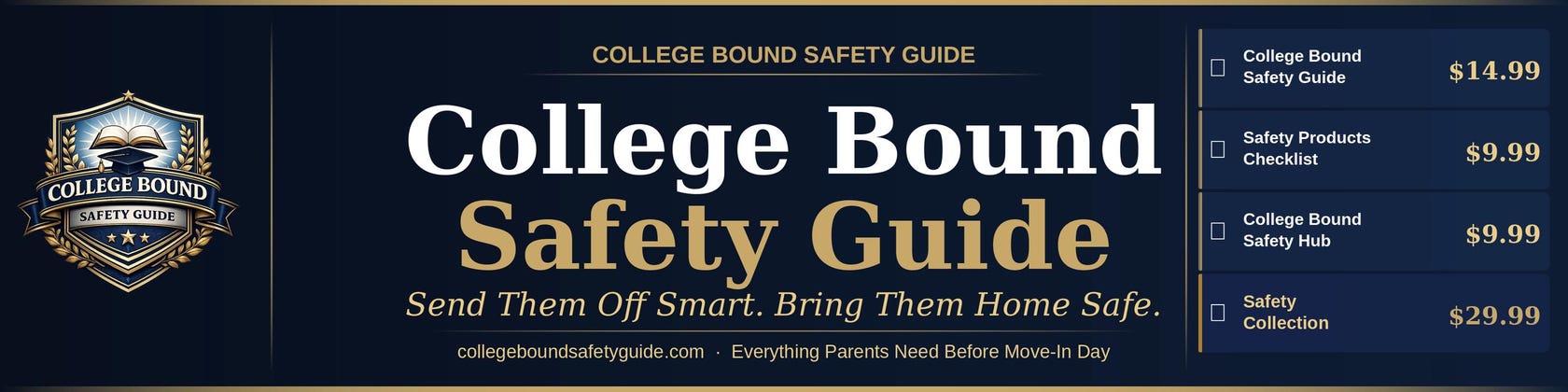



The College Bound Safety Guide
すべての商品
お知らせ
最終更新日: 2026年 04月 21日
CollegeSafetyGuide について
セールス
0
Etsy ショップ創設年: 2026
-
-
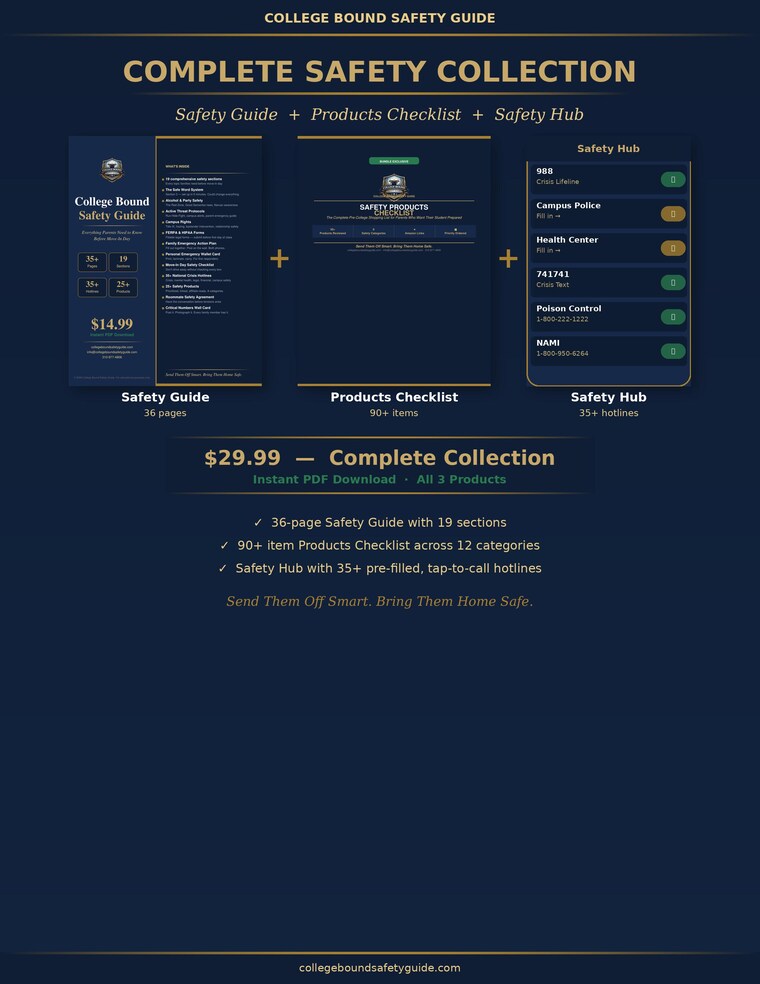 College Safety the Complete Collection | 3 Digital Downloads | Safety Guide + Checklist + Emergency Hub and more
 -
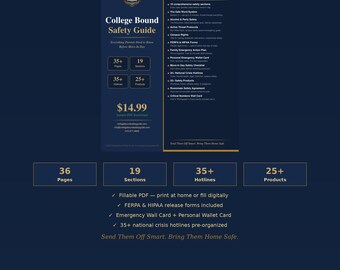
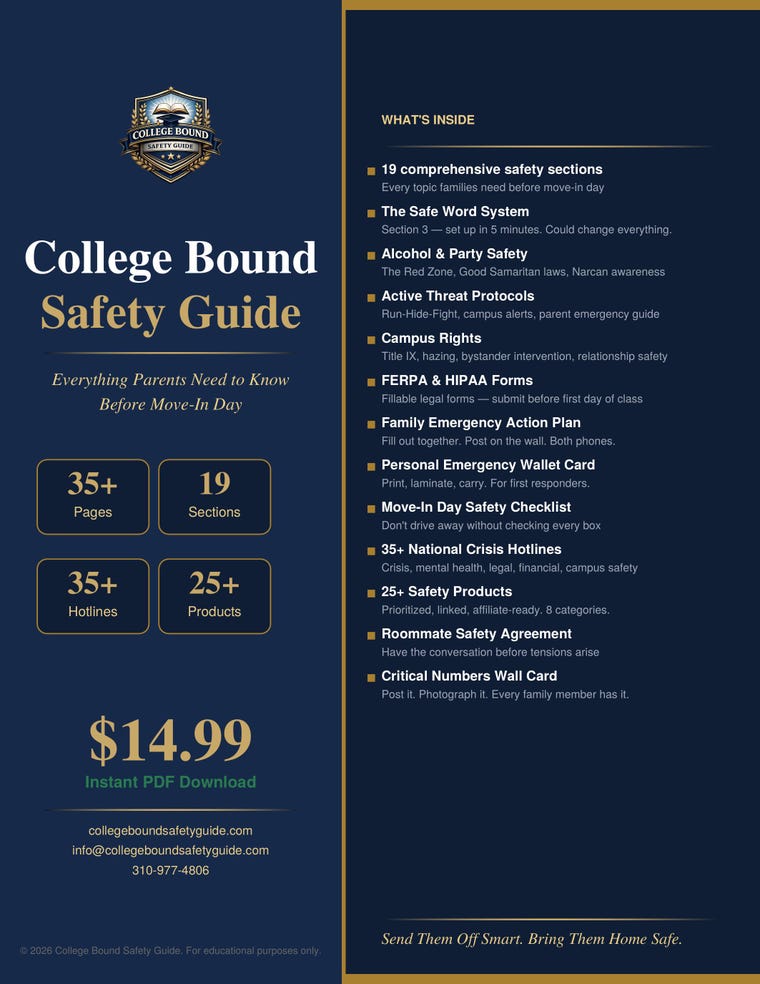 College Safety Guide for Parents | FERPA HIPAA Forms | Safe Word System | 36-Page PDF| Instant Download and more
 -
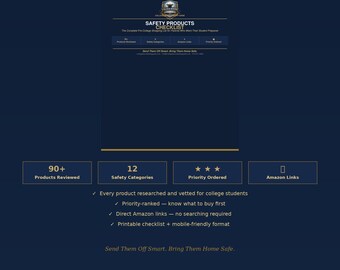
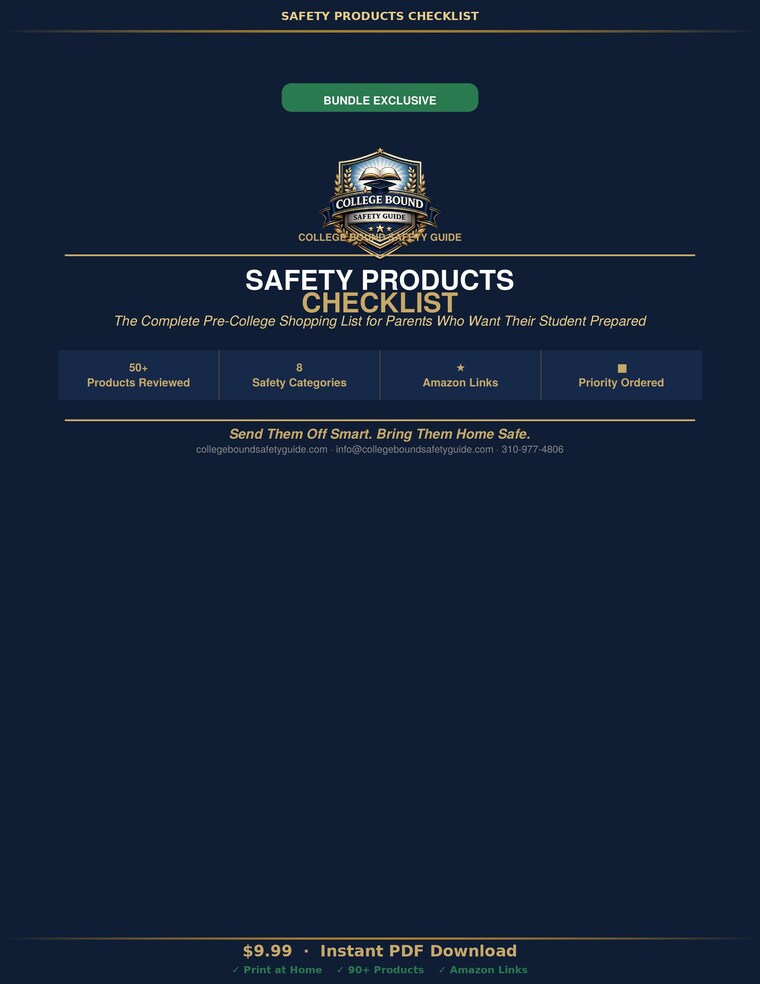 College Safety Products Checklist | 90+ Items | 12 Categories | Brands and Prices | Amazon Links | Instant Download
 -
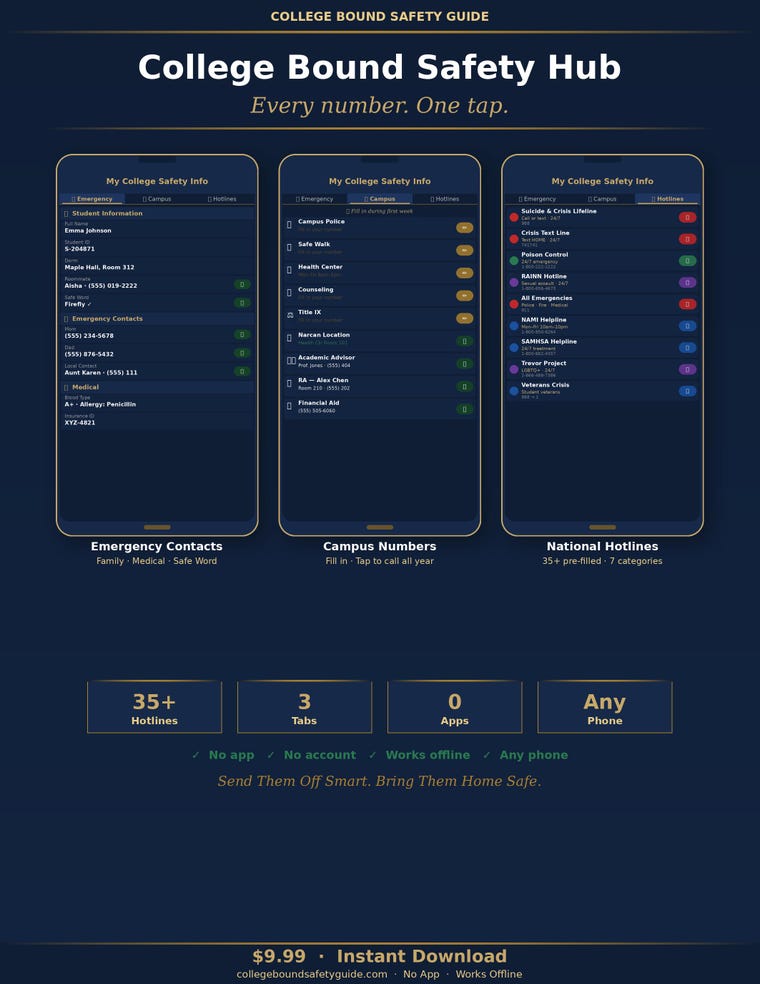 Emergency Contact Tool | 35+ Hotlines Pre-Filled | Works on Any Phone | One Tap to Call | Instant Download
ショップの詳細動画概要
ショップポリシー
最終更新日:
利用可能な支払い方法
Etsy ギフトカードと Etsy ポイントがご利用可能です
返品&交換
返品&交換の可否は商品詳細をご確認ください。
その他の情報
最終更新日:
2026年 05月 7日
よくある質問
When will I receive my files?
Immediately. The moment your payment is confirmed, Etsy emails you a download link. Your files are also available anytime in your Etsy account under Purchases → Download Files. No waiting, no processing time, nothing to be shipped. All products in this shop are digital downloads.
Can I share the files with my student or family members?
Yes — share with your immediate family. Send the files to your student, a co-parent, or a grandparent involved in your student's college preparation. The Safety Hub is specifically designed to be forwarded to your student so both phones have every number before move-in day. Please do not distribute files publicly or resell them. All products are licensed for personal family use.
What formats are the files and what do I need to open them?
College Bound Safety Guide — PDF. Opens in any PDF reader: Adobe Acrobat, Apple Preview, Chrome, Safari, or your device's built-in viewer.
Safety Products Checklist — PDF. Same as above. Print it and shop directly from it.
College Bound Safety Hub — HTML file. Opens in any web browser: Safari, Chrome, or Firefox. Works on iPhone, Android, Mac, PC, iPad, or any tablet. See setup instructions below.
If you can open an email attachment or visit a website, you can open all three.
My student doesn't have a car or a bicycle. Are those sections still useful?
No problem — skip those categories entirely. Car & Road Safety and Bicycle & Scooter can be ignored if they don't apply. The remaining 10 categories apply to every student regardless of transportation: Dorm & Room Security, Personal Safety, Digital & Identity, Health & Medical, Mental Health & Wellness, Financial Safety, Night Safety, Off-Campus & Apartment, Travel & Long-Distance, and General Preparedness.
How do I set up the Safety Hub on my iPhone?
Step 1. Download the file from Etsy Purchases. It is called My_College_Safety_Info.html.
Step 2. Tap the file. If prompted, choose Open in Safari. (Do not open in the Files app.)
Step 3. Once the Hub is open in Safari, tap the Share button at the bottom of the screen (the box with an arrow pointing up).
Step 4. Scroll down and tap "Add to Home Screen." Give it a name and tap Add.
Step 5. The Hub now appears on your home screen like an app — one tap, always there.
Step 6. To share with your student: AirDrop the file, email it, or send via iMessage. They follow the same steps on their phone. Both phones covered.
The Hub works completely offline after setup. No WiFi or cellular data required.
How do I set up the Safety Hub on Android?
Step 1. Download the file from Etsy Purchases. It is called My_College_Safety_Info.html.
Step 2. Find the file in your Downloads folder and tap it. Choose Open with Chrome (or Firefox).
Step 3. Once open in Chrome, tap the three-dot menu in the top-right corner.
Step 4. Tap "Add to Home Screen" and confirm. The Hub icon appears on your home screen.
Step 5. One tap to open — works like an app, always there.
Step 6. To share with your student: email the file, send via Google Drive, or use a transfer cable. They follow the same steps.
The Hub works completely offline after setup. Data is saved on device — never uploaded anywhere.
How do I open the Safety Hub on a Mac or PC?
Step 1. Download the file from Etsy Purchases. It is called My_College_Safety_Info.html.
Step 2. Double-click the file. It opens in your default browser (Chrome, Safari, Firefox, or Edge).
Step 3. Bookmark the page or drag the tab to your bookmarks bar for one-click access.
If the file does not open when double-clicked, right-click it, choose Open With, and select your browser.