

Uitgelichte items




Alle items
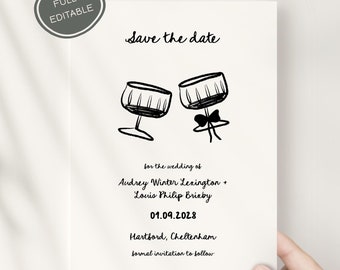
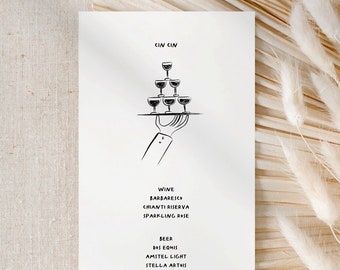

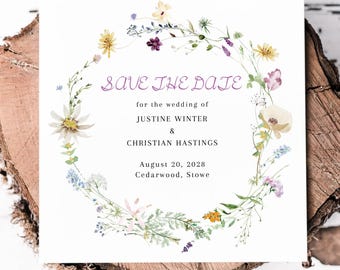





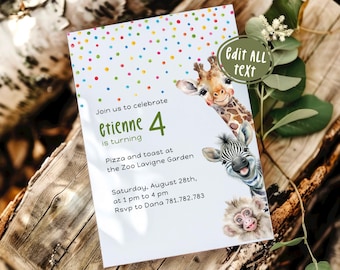



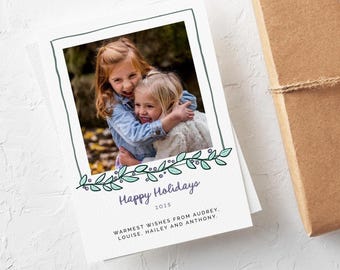





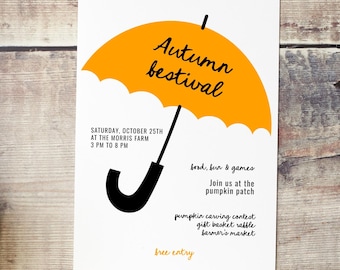


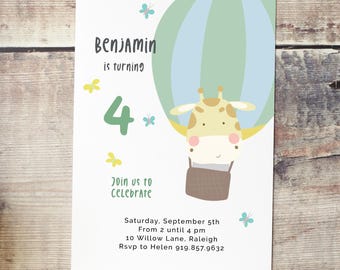


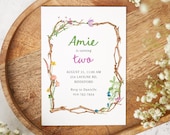
Aankondiging
Laatst bijgewerkt op 29 sep. 2025
Recensies
5.0
(295)
Gemiddelde itemrecensie
We berekenen deze score op basis van het gewogen gemiddelde van alle recensies. Hierbij is de recentheid van belang: een recensie weegt elk jaar met de helft minder door, zodat de beoordeling de huidige ervaring zo goed mogelijk weerspiegelt.
Laden
-

Etsy-koper op 13 apr. 2026
5 uit 5 sterrenGeweldige selectie en erg behulpzaam. Ik kom zeker terug naar deze winkel!
-
Etsy-koper op 26 apr. 2025
5 uit 5 sterrenAbsoluut perfect!! Precies wat ik nodig had! En het downloaden werkte perfect!




Over AspenInvite
Sales
3.509
Op Etsy sinds 2016


Shopleden
-

Aspen Invite
Eigenaar
Hi! My name is Anja and I am the designer of Aspen Invite in Norway.
Shopbeleid
Laatst bijgewerkt op 06 feb. 2025
Digitale downloads
Directe downloads
Je bestanden worden beschikbaar voor download zodra je betaling bevestigd is. Hier vertellen we je hoe dat moet.
Betaalmogelijkheden
Veilige opties
Accepteert Etsy-cadeaubonnen en Etsy-tegoed
Etsy houdt je betaalgegevens veilig. Verkopers zien je creditcardgegevens niet.
Retouren en ruilingen
In de itemdetails staat of retouren en ruilingen mogelijk zijn.
Annuleringen
Annuleringen: geaccepteerd
Verzoek om annulering indienen: binnen 2 dagen na aankoop
Privacybeleid
Meer informatie
Laatst bijgewerkt op
04 mrt. 2025
Veelgestelde vragen
HOW CAN I ACCESS MY TEMPLATE?
Corjl will send you an email with a link so you can log in and access your item. You can also access your item by visiting corjl.com and entering your order details.
Instructions are included with the purchase. Corjl also offers video tutorials online.
If you have any problems, try these tips:
1. It is recommended that you use the Chrome browser.
2. It is recommended using a desktop or laptop computer.
3. The order did not load correctly, or there was a server error: Try refreshing the page or logging out and back in to try again.
If you are still experiencing problems, please contact my shop.
HOW TO DOWNLOAD AND EDIT PDF FILES?
Go to www.etsy.com/your/purchases and select "Download Files."
Etsy will also send you an email with a link to your files.
An instruction guide is included in your purchase.
For information on what can be changed in each item, see the item description.
Use a PDF reader, such as Adobe Reader, to edit.
The editing options are limited, so it is recommended to keep the font already in the design. Click CTRL E to change the font size depending on the length of the names you want to fit.
CORJL BASIC START GUIDE
1. Click on 'Layers' in the lower right corner.
2. Choose the layer that needs editing. Edit your text in the textbox above the layers.
Tips: Use the leading and tracking options to adjust the spacing in your text.
3. Choose fonts from the fonts menu and change the color from the color box.
4. To change the font size, drag the text box corners in the template or choose a point size from the drop-down menu.
Bonus: You can create multiple items with different text; just choose 'Duplicate Page' above the template.
HOW TO PLACE MY PHOTO?
Click on the sample photo in the template, then choose 'Replace Image' from the tools panel on the right.
If necessary, crop your photo before uploading. Make sure to upload one of your photos with the same orientation as the sample photo for the best result. Drag one of the gray corners to fit your photo into the frame.