Featured items

All items
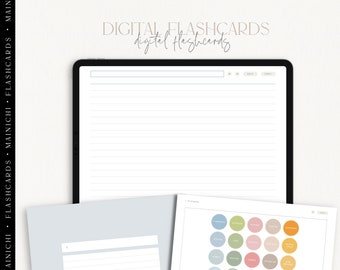
Announcement

Reviews
-

-

Ashlyn on 02 Aug, 2026
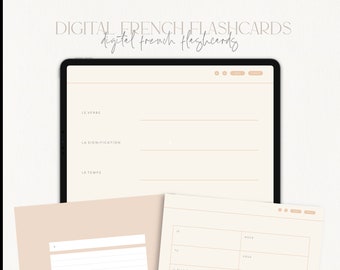
5 out of 5 starsCurrently enrolled in a Vet Tech Associate’s and these digital index cards have helped me so much when it comes to studying! Definitely recommend!
-

-
Etsy buyer on 17 Jun, 2026
5 out of 5 starsSo many options to choose from. Having fun using these with my iPad.
-
-
-
-
-

-

Jessica on 21 Feb, 2026
5 out of 5 starsThis makes me want to use my goodnotes app more and its just really fun to use


About MainichiDesign
Shop policies
Digital downloads
Payment options
Returns & exchanges
Cancellations
Cancellations: not accepted
Please contact the seller if you have any problems with your order.
More information
Frequently asked questions
How do I import the file into applications like GoodNotes?
1. Access your purchase on: https://www.etsy.com/your/purchases.
2. Locate your purchase in the Files app on the iPad and tap to open it.
3. Click the Share button.
4. Choose preferred application (e.g. GoodNotes).
5. Once opened in your desired application save the file to the location/folder you wish.
6. The planner will now be ready to use in chosen application.
Which applications work with your product?
This file will work on the following applications:
- GoodNotes
- Notability
- Noteshelf
- Adobe Reader
- Preview
- PDF Viewer Pro
- Adobe Acrobat
Why do the hyperlinks not work?
Please make sure you select the “Read - Only” option on GoodNotes. It looks like a crossed out pencil. You will also find a description in the user guide I have preinstalled inside the planner for easier explanation.
If you use the Notability app, select the “Scissors Tool”, and tap on the hyperlink to open desired page.
How do I download the files I purchased?
To access your purchased files, go to: https://www.etsy.com/your/purchases.
Locate your purchase from MainichiDesign and tap on “View your files” which will take you to the Downloads page. Simply download all the files you have purchased.
Note: If you purchase my products as a guest, please make sure to check the email you used for your order. You will receive a mail from "transactions@etsy.com" where a link to download your files will be attached. Also note that files can’t be downloaded from the Etsy app, only web browsers will work.
How do I access Zip files on the iPad?
Save the zip file to the iPads “files” app.
This is where you will be able to unzip the file.
Open the files application and just by pressing on the file it will automatically unzip for you.
Once it unzips all files within it will become visible.
Simply select the file type you wish (Pdf version or Goodnotes version) and click on it.
Once clicked, press the share icon and select the app you wish to open it on.
It will then save the file to the application you selected and will be ready to use on that application.
If there are any issues feel free to message me so we can get your planner ready for use as quick as possible.
Returns/exchanges/refund policy
As mentioned above this is a digital product and once payment has been confirmed you will have immediate access to this product via download. Given the nature of this item I am unable to accept returns, exchanges or refunds. I do advise that you take your time to review and feel free to ask any questions before purchasing.
If there are any questions or issues you face with your purchase I strongly advise you message me via Etsy so I can do my utmost best to help you.
Can I re-sell/re-disitrubute your planners?
All designs, components and contents sold are property of ©Mainichi Planner and are for personal use only. The files are not to be redistributed, reproduced, recreated or resold.
How to use Digital Stickers
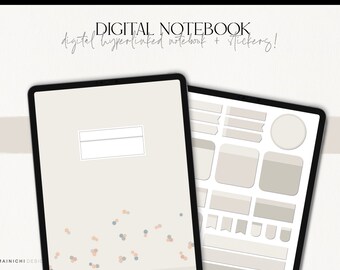
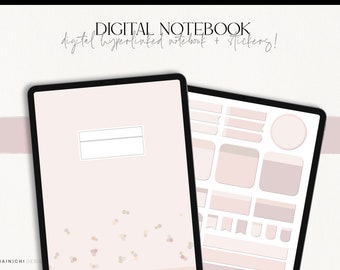
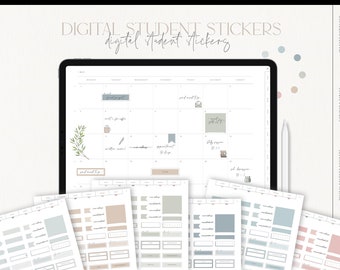
Each sticker is created with ultimate care and is unique in its design. To make them easily accessible and useable they are pre-cropped and pre-installed for easy use with Goodnotes. You can simply select the lasso tool and draw on/around any sticker and copy and paste them anywhere you please. I strongly recommend Goodnotes as I find it the most efficient way to use the stickers freely.
Also included is each individual png file, which can be opened from the files app and copied to your camera roll or directly into the planner.
Each sticker can also be found on the sticker sheets images which can be added into the planner and cropped manually.
All stickers can be re-sized and arranged as you need.
How to import individual sticker png’s and stickersheet
To import individual sticker png’s:
1. Open the individual png sticker file.
2. Select the colour you want.
3. Then select the sticker you want.
4. Save this to your camera roll.
5. Open planner and import image from camera roll.
(Alternatively you can drag the sticker directly into the planner from the files app)
6. Re-size and arrange as you desire.
How to import a sticker from the ground sticker sheets:
1. Open the grouped sticker sheet in the files app.
2. Save the sheet to your camera roll and add to the planner.
3. Crop as you desire.
4. Re-size and arrange.
(Alternatively you can drag the entire sheet to the planner and then crop as you need)