

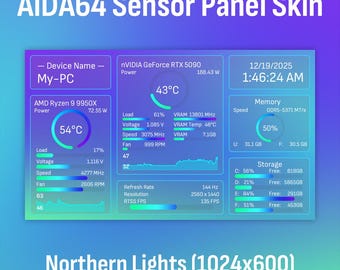
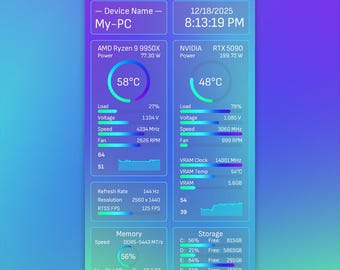
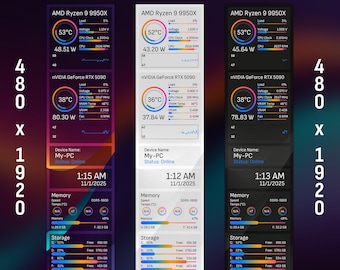
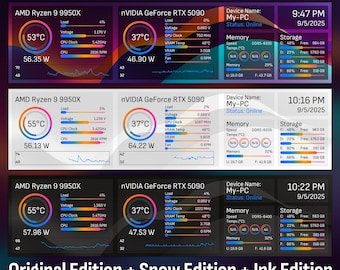

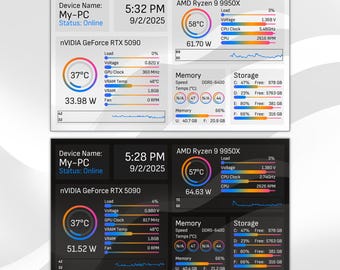

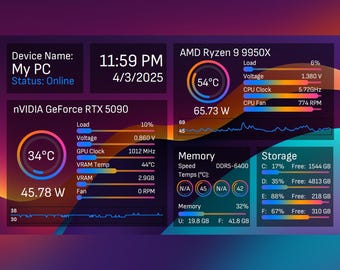
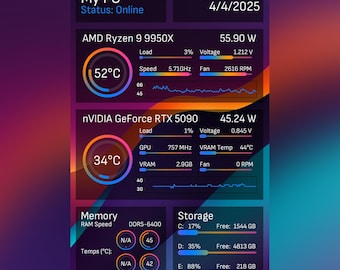


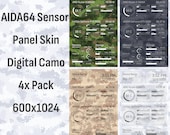
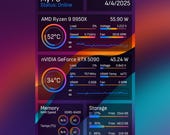


Clean, Sleek and Modern AIDA64 Sensor Skins for Your PC Builds
Featured items
All items
Announcement
Last updated on Oct 15, 2025
Reviews
4.9
(43)
Average item review
We calculate this number using a recency-weighted average of all ratings, with a rating's value decreasing by half each year to best reflect the current experience.
Loading
-

Daniel on Sep 26, 2026
5 out of 5 starsIt leaves a great look for monitoring my computer on my extra screen
-

Richard on Aug 8, 2026
5 out of 5 starsLove it, bought a 720x1920 display to install in my Havn420, but found it difficult finding a suitable overlay that would work for this resolution. Looks great, and matches what i have in my case
-
-
-
-
-

Miguel on Jun 8, 2026
5 out of 5 starsIt's difficult to find good panels for 1920x720 but this one delivers.
-
Michael on Jun 6, 2026
5 out of 5 starslooks great and keeps all my PC information right where I can see it
-
-

Michael on Apr 24, 2026
5 out of 5 starsLooks amazing! Running it on a g.skill wigidash and love it.
About CycloneDesignsShop
Sales
349
On Etsy since 2025
-
 Proudly Serving PC Enthusiasts Around the World
Shop members
-

Cyclone Designs
Owner
Shop policies
Last updated on Apr 4, 2025
Digital downloads
Instant downloads
Your files will be available to download once payment is confirmed. Here's how.
Payment options
Secure options
Accepts Etsy Gift Cards and Etsy Credits
Etsy keeps your payment information secure. Etsy shops never receive your credit card information.
Returns & exchanges
See item details for return and exchange eligibility.
Cancellations
Cancellations: not accepted
Please contact the seller if you have any problems with your order.
More information
Last updated on
Dec 17, 2025
Frequently asked questions
I am interested in your sensor panel designs, but they are not offered in my screen resolution?
Feel free to message us your screen resolution! Although we may not be able to provide the panels in all screen resolutions, for some resolutions we may be able to provide modified sensor panels that fits your screen!
The text for CPU or GPU name is too long and blocks other elements on the panel, how do I fix it?
These texts uses Aida64's built in detector to fetch the model name of your CPU/GPU. You may follow the steps below to change it:
1. Right click any where on the sensor panel, and select SensorPanel Manager
2. In the SensorPanel Manager window, find the items with description "$CPUMODEL" or "$GPU1MODEL".
3. Right click on the item you wish to edit, and click modify.
4. A Modify Item window will pop up, in the textbox next to "Label:", you will see "$CPUMODEL" or "$GPU1MODEL".
5. Delete the text, and enter your CPU or GPU model name in a shorter form, and click OK button on the bottom right.
6. Now your CPU or GPU name should be good! Click export, and overwrite the sensor panel file to save your changes.
Why is the font on my sensor panel is different from the images shown in the listings?
That is due to our sensor panels using a font that is not installed on your PC! We bundled the fonts needed for each sensor panel in the .zip files that you downloaded. You may double click to open the font files, and in the window click install to install the font required.