






Thoughtful Tools for Life’s Busy Moments
Polecane produkty
Wszystkie produkty
Ogłoszenie
Data ostatniej aktualizacji 6 gru 2025
Opinie
4.8
(56)
Średnia opinia o produkcie
Przy obliczaniu tej wartości wykorzystujemy średnią ocenę z wszystkich ocen, biorąc pod uwagę to, kiedy zamieszczono opinię – co roku wartość oceny zmniejsza się o połowę, tak aby jak najlepiej oddać aktualne doświadczenia zakupowe.
Ładowanie
-

Dorothy w dniu 20 lis 2025
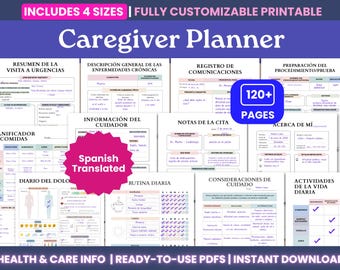
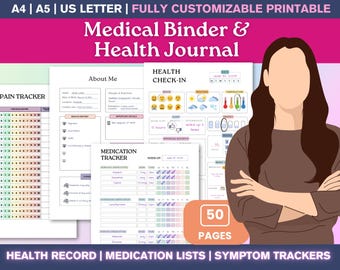
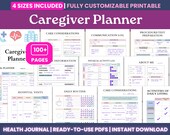
5 na 5 gwiazdekI’m trying to organize taking a more active role in monitoring/managing the health of my aging parents—this has been so helpful in coordinating their information for me and my siblings to be able to track things and communicate well!!
Ładowanie
Sprzedawca Template odpowiedział w dniu 20 lis 2025
Dorothy, it truly made my day to hear that! I’m so happy this has been helpful for you, and thank you for taking the time to write a review!
Ładowanie
Informacje o sklepie TemplateDesignerCo
Transakcje
668
Na Etsy od 2021
Pracownicy sklepu
-

Template Designer
Właściciel, Twórca, Projektant
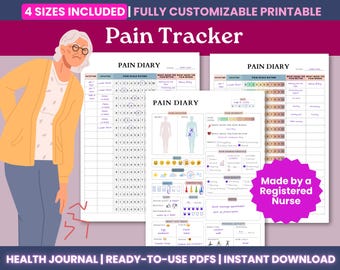
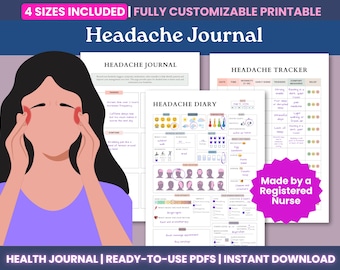
I'm a Registered Nurse and my experience showed me the need for simple, supportive health tools. My shop is where that comes to life! I'm dedicated to providing you with the practical resources you need to take an active role in your well being.
Regulamin sklepu
Data ostatniej aktualizacji 26 cze 2021
Produkty cyfrowe do pobrania
Pliki do natychmiastowego pobrania
Pliki będą dostępne do pobrania po potwierdzeniu płatności. Procedura.
Opcje płatności
Bezpieczne opcje
Akceptuje karty podarunkowe Etsy i bony Etsy
Etsy zapewnia bezpieczeństwo Twoich informacji o płatnościach. Sklepy Etsy nigdy nie otrzymują danych Twojej karty kredytowej.
Zwroty i wymiany produktów
Sprawdź szczegóły produktu, aby dowiedzieć się, czy kwalifikuje się on do zwrotu lub wymiany.
Anulowania
Anulowania: niezaakceptowane
Skontaktuj się ze sprzedawcą w razie problemów z zamówieniem.
Więcej informacji
Data ostatniej aktualizacji
17 gru 2025
Często zadawane pytania
How do I access my files?
If you have an Etsy account:
Go to Etsy
Sign into your Account
Click on Purchases & Reviews
Find your order
Click “Download Files”
Your individual PDFs will appear — save them to your device.
If you don’t have an Etsy account:
Check the email receipt Etsy sent you
Click the “View Your Files” link in that email
Download your files to your device
I have downloaded my files — where is my Canva template?
Look for the PDF file with “Link” in the name
Open this PDF file
Tap the “Click Here” button in the PDF file for the size you want
Your Canva template will open in Canva — log in or create a free account if prompted
How do I edit my fillable PDF files?
Option 1 — Using a PDF app or reader (recommended):
Open the PDF in any PDF annotation app (Adobe Acrobat, GoodNotes, Xodo, etc.)
Tap or click the fields where you want to type or check boxes
Your entries will save automatically if your app supports it
Option 2 — Using Preview (macOS) or browser PDF preview:
Open the PDF in Preview (Mac) or your browser’s PDF viewer
Use the Text Tool (usually a “T” icon) to type into the fields
Use the Markup tools to draw check marks or highlight if needed
Save your changes after typing
Tip: Editing directly in Etsy’s website preview is limited — for best results, open the PDF in Preview, your device’s PDF viewer, or a PDF app.
How do I print using Canva?
Open your Canva template using the LINK PDF
Customize your template as desired
Click Share → Download in Canva
Select PDF Print for high-quality printing
Save the PDF and print at home or through a print shop
Tip: Choose “Crop marks and bleed” if your printer needs extra space for cutting.
What if I notice an error in the template?
I carefully design and test each template, but if you notice any errors or something isn’t working as expected, I’m happy to make adjustments for you.
Please message me on Etsy with the issue, and I’ll provide an updated version or help you resolve it as quickly as possible.
Your feedback helps me improve my templates for everyone!
Can I request changes to a template?
Yes! I’m happy to consider small customizations for your templates, such as:
- Changing fonts to make them easier to read
- Adding extra writing space on certain pages
- Adjusting colors or layout for better usability
Please send me a message on Etsy with your request. I’ll confirm whether it’s possible and provide or list an updated file if I can make the adjustment.
Note: Major redesigns or adding new pages may require a separate purchase.
How do I use my planner in GoodNotes?
1. Open GoodNotes - Launch the GoodNotes app on your iPad or iPhone.
2. Import your PDF - In GoodNotes’ Library view, tap the “+ New” (or plus) icon → choose “Import”. Choose your template and tap "Open"
The planner/template will open in GoodNotes as a document you can annotate or fill out.
3. Edit / Write / Fill In - Use GoodNotes’ pen or text tools to write, check off boxes, or add notes.
4. Save or Export (optional) - Once filled out in GoodNotes, your changes are saved automatically. You can also export or print the document later if needed.
If you want a detailed walkthrough or run into trouble, here's GoodNotes’ own guide on importing files:
https://support.goodnotes.com/hc/en-us/articles/7353717816463-Import-files-into-Goodnotes