

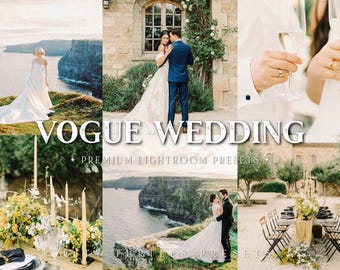


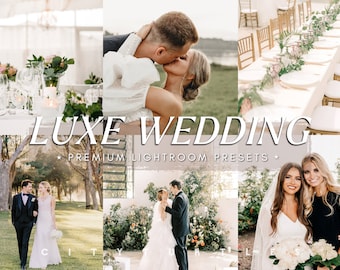










✨Premium Photography Editing Tools for Creatives✨
All items
Announcement
Last updated on Dec 10, 2024
Reviews
4.8
(1844)
Average item review
We calculate this number using a recency-weighted average of all ratings, with a rating's value decreasing by half each year to best reflect the current experience.
Loading
About CityTurtles
Sales
35,650
On Etsy since 2018
-
 Edited with our FUJIFILM Presets 🤍
 -
 Edited with our GOLDEN GLOW Presets☀️
 -
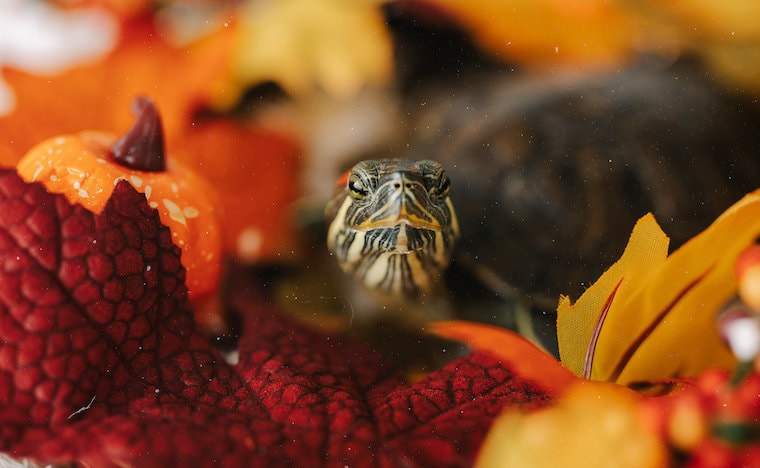 Edited with our GOLDEN FALL Presets🍁
 -
 Edited with our Fall Leaf Overlays🍂
Shop policies
Last updated on Feb 18, 2021
Digital downloads
Instant downloads
Your files will be available to download once payment is confirmed. Here's how.
Payment options
Secure options
Accepts Etsy Gift Cards and Etsy Credits
Etsy keeps your payment information secure. Etsy shops never receive your credit card information.
Returns & exchanges
See item details for return and exchange eligibility.
Cancellations
Cancellations: not accepted
Please contact the seller if you have any problems with your order.
More information
Last updated on
Dec 17, 2025
Frequently asked questions
How do I download presets/overlays on my phone?
✨How to Download on Mobile✨
Etsy doesn't support downloading digital files via Etsy App so here's how to get around it:
1. Login to Etsy.com on your phone's browser. Safari, Ecosia (save the trees!), Google, etc. whichever you use will work.
2. Go to your Profile > Purchases & Reviews > then find your order.
3. Download the PDF file titled "MOBILE-LINK" and follow the Google Drive link to the files.
How do I use mobile presets?
✨Mobile Instructions✨
Open the PDF file titled "MOBILE-LINK" and follow the link.
1. Save the DNG files to your camera roll. You can press "Open/Send to Lightroom" if it appears for you.
2. Open Lightroom and import DNGs the same way you upload regular photos. If it says "Cannot Preview" ignore and proceed.
3. Once uploaded, click on a DNG > click the ••• icon on the top right corner > press 'Create Preset'
4. Name the preset then press √. Don't worry about the settings, the ones you need will automatically be checked for you.
5. Open an image you want to edit > scroll to 'Presets' tab > apply a preset and press √. Feel free to adjust exposure, temperature, etc. to better suit your image. You're done! Woohoo!
How do I install presets in Lightroom desktop on my computer?
✨For Lightroom 4, 5, 6, 2015 and older versions✨
1. Download the ZIP file from Etsy. Unzip the file and open Lightroom. To unzip, double click on the file or right-click then press 'Open/Unzip'
2. In the Develop module, go to Presets, right-click on any folder to create a new one titled CITYTURTLES PRESETS.
3. Right click on the folder again and click Import Presets.
4. Import the .LRTEMPLATE file presets from the folders.
✨For Lightroom Classic CC 7.5 and newer versions✨
1. Download the ZIP file from Etsy. Unzip the file and open Lightroom.
2. Go to Presets, click the + button then click Import Presets.
3. Import the .XMP file desktop presets.
4. Restart Lightroom if needed. The presets will appear in a new group.
My presets are not importing in Lightroom desktop
Please go through this checklist and if you're still unable to import the presets, contact us!
✨Troubleshooting Tips✨
• In the top menu, go to Preferences > Presets > then uncheck the 'Show Partially Compatible Presets' box. Restart Lightroom.
• Make sure the ZIP file is unzipped
• Try importing both .LRTEMPLATE and .XMP desktop file types
• Check the 'User Presets' folder
• Make sure you have an image open in the Develop module
• Right click on any preset folder and click 'Import Presets'
Looking for more? Find it on Etsy