

All items





Reviews
-

-

-
-

Sharon on Jun 11, 2026
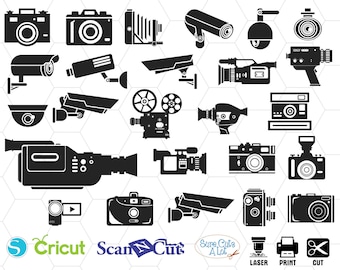
5 out of 5 starsCamera Graphics are bright and very creative ,beautiful images
-

Kory on May 30, 2026
5 out of 5 starsI was able to use these easily in Lightburn without any modifications.
-

-

-
Radulescu on Feb 28, 2026
5 out of 5 starsThank you for the nice quality pictures ^^ Keep cuddling the world with your talent! Hugs! >:D<
-
-



About DCoco100
Shop policies
Digital downloads
Payment options
Returns & exchanges
Cancellations
Cancellations: not accepted
Please contact the seller if you have any problems with your order.
More information
Frequently asked questions
What am I allowed to do with the images purchased in your store?
A: All the design resources available in our store are licensed to allow usage in personal and commercial projects, but not directly resold or redistributed.
✔ You may use my images in your crafts and designs. You may then sale your finished product on Etsy or other online marketplace, craft and art fairs, etc.
Distribution of the images must be as an end product, i.e. t-shirts, coasters, jewelry, accessories and such.
Copyright is not transferred with the purchasing of an image. When you pay, you are paying to use the image, not to own the image. I retain their copyrights.
...
Basically, you can do anything with the images except actions that compete with my business or make it easy for another person to have the image.
How Do I use my purchased in my Silhouette Studio software?
A: If you have Basic Silhouette Studio software you will need to use DXF format files. Import DXF file by going to “File -> Import -> Import to Library…” in your Silhouette Studio, and then browse to DXF files location.
If you have Designer Edition Silhouette Studio software you will need to use SVG format files. Import SVG file by going to “File -> Import -> Import to Library…” in your Silhouette Studio, and then browse to SVG files location. You may need to select “SVG” in “Files of type” dropdown box.
You sell some items with all the disign on one page. Is there an easy way to separate the elements I want to work with?
A: Yes! Just follow the easy steps described below:
1 - Upload, insert
2 - Ungroup
3 - Draw a bounding box around your desired element to select it
4 - Click on "Copy" (or Ctrl+C) to copy your element to clipboard
5 - Click on "Select All"
6 - Hit "Delete" on your keyboard
7 - Click on "Paste" (or Ctrl+V) to paste your logo back in
Voila! You may now want to save your project and then continue working on it.
Where can I use these files?
These digital clip art files can be used for:
★ Scrapbooking
★ Cut machines
★ Vinyl decals, stickers
★ Clothes printing
★ Printable decoration
★ Cards & Invitation design
★ Iron-on Transfer
★ Engraving
★ etc.
How to download files?
Once your order is completed you will automatically be emailed a link
to an Etsy download page where you can download your digital file(s).
The email will be sent to the email address registered to your Etsy account.
If you need further help with your download, check the official Etsy download guide.
https://www.etsy.com/help/article/3949?ref=help_search_result
Please note that this is a digital file, no physical items will be shipped to you.
Looking for more? Find it on Etsy