



Procreate Brushes & Stamps ♥
Featured items
All items
Announcement
Last updated on Oct 13, 2025
Reviews
5.0
(53)
Average item review
We calculate this number using a recency-weighted average of all ratings, with a rating's value decreasing by half each year to best reflect the current experience.
Loading
-

Pam on Aug 23, 2025
5 out of 5 starsThanks for reminding me why I don’t bother trying to make brushes myself, someone else already did it perfectly! Love them so much already!!! Thank you!!!

Shelly responded on Aug 23, 2025
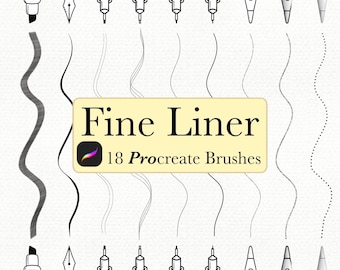
Pam, I’m thrilled you love these fineline brushes! Thanks for the encouragement 💖
-

Etsy buyer on Jul 24, 2025
5 out of 5 starsGreat thank you. Makes life so much easier
Shelly responded on Jul 24, 2025
This is wonderful to hear, thank you!
About FineLineFlashCo
Sales
1,052
On Etsy since 2012
Shop policies
Last updated on Apr 29, 2020
Digital downloads
Instant downloads
Your files will be available to download once payment is confirmed. Here's how.
Payment options
Secure options
Accepts Etsy Gift Cards and Etsy Credits
Etsy keeps your payment information secure. Etsy shops never receive your credit card information.
Returns & exchanges
See item details for return and exchange eligibility.
Cancellations
Cancellations: not accepted
Please contact the seller if you have any problems with your order.
More information
Last updated on
Dec 17, 2025
Frequently asked questions
How do I receive my digital files after purchase?
https://help.etsy.com/hc/en-us/articles/115013328108-How-to-Download-a-Digital-Item?segment=shopping
How do I download Procreate Brushes to my ipad?
Etsy app will not support downloads, please use a browser.
1. Using your iPad, open the browser (Safari), then visit www.Etsy.com and sign in
2. Click Profile > Purchases & Reviews > Download Files
3. Click the download icon next to each file
4. Open your download folder, find the brush file, then click to open and install it
5. The brush should automatically import to Procreate (scroll through your brushes for you new
brush set)
6. Repeat the process for every brush file
What is your refund policy?
Due to all items being digital downloads, no refunds are offered. If you have purchased two of the same items by mistake, please contact me.
How do I download PNG|JPEG files to my ipad?
1. On your device, log into your Etsy account via web browser (downloads not supported on the Etsy App)
2. Select your profile icon
3. Select Purchases & reviews
4. Find your order
5. On the right side of the order select Download Files
6. The files will be automatically saved to your Downloads folder. If asked, choose where you want to save it, then click Save.
How to unzip a zip file:
- for macOS users: double-click the zipped file and it will be unzipped and a new folder is created.
- for Windows users: right-click to select Extract All and then follow the instructions on your screen.
-for iPad users: tap the zipped file and it will create a folder adjacent to it with your files.
Looking for more? Find it on Etsy