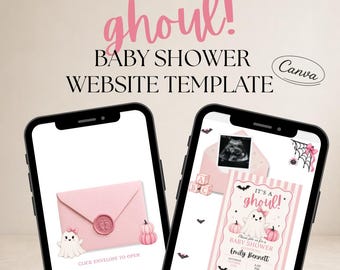
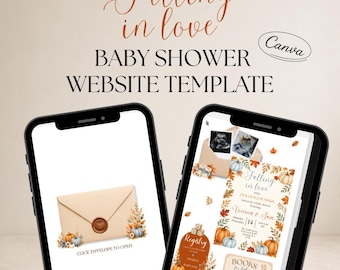
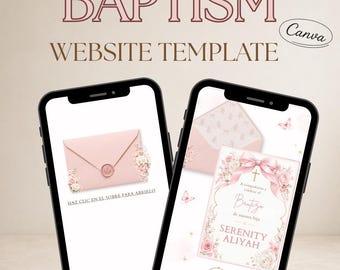
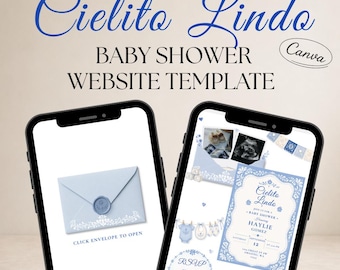

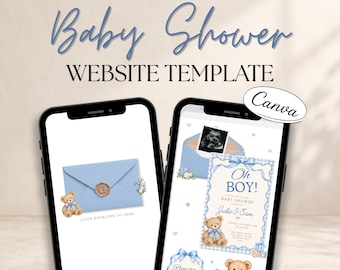
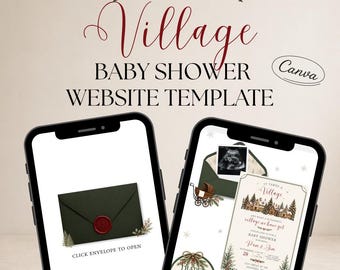
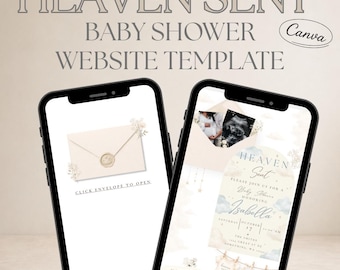
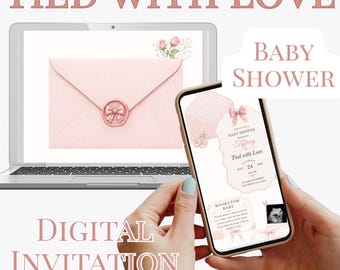
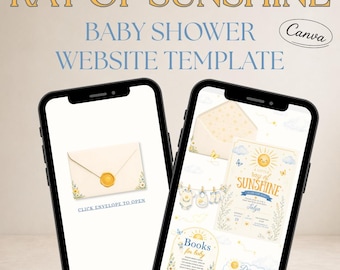
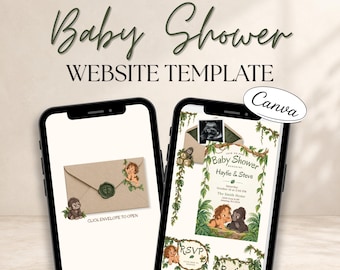
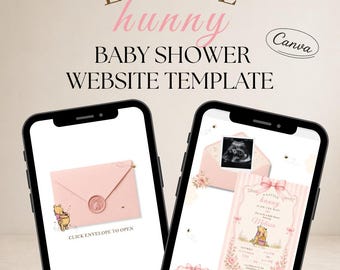
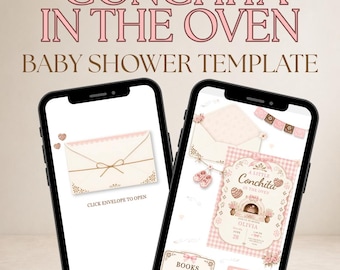
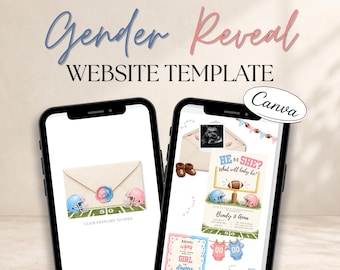
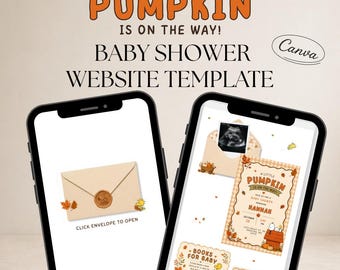
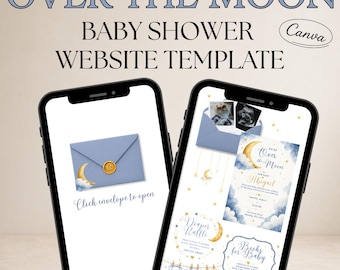

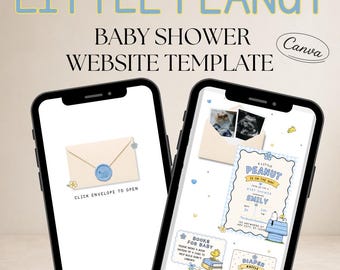
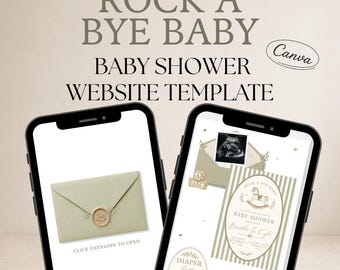
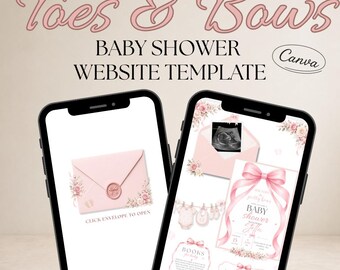
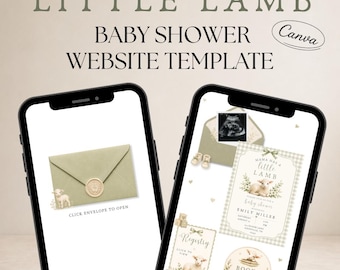
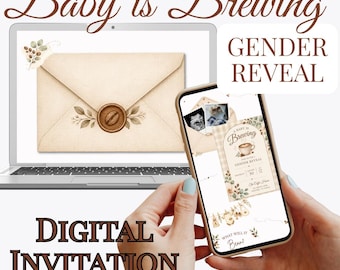
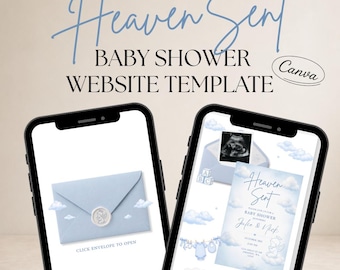
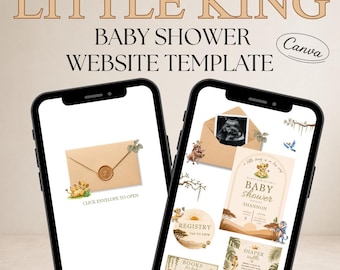
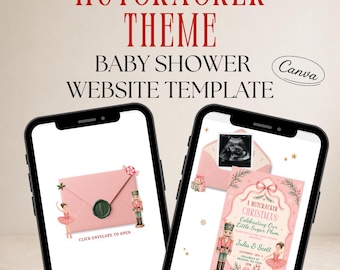
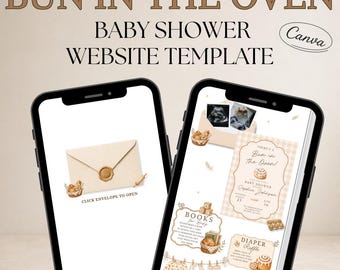
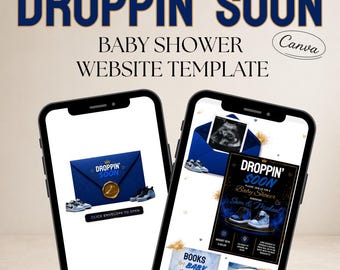
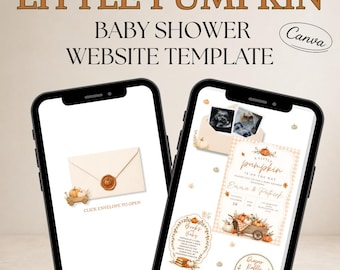
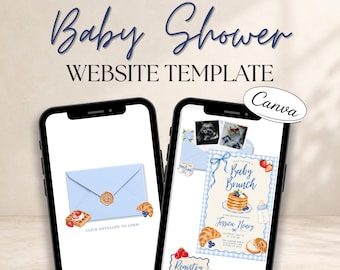
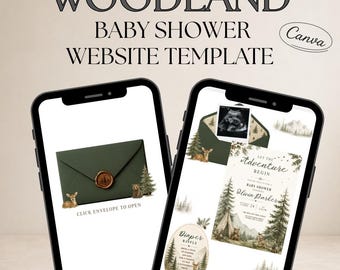
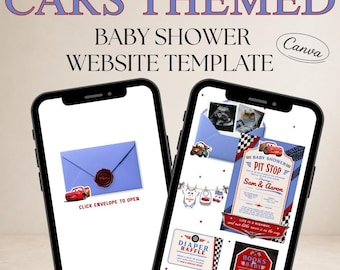

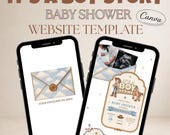


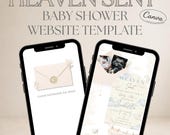

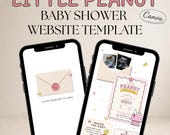

Hi, I'm the creator behind InviteMeEdit!
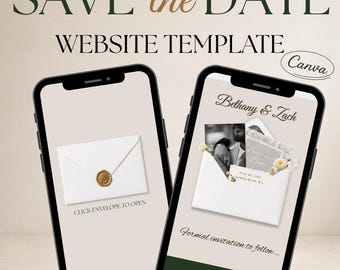
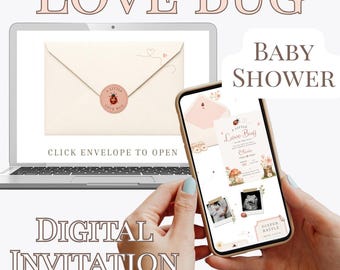
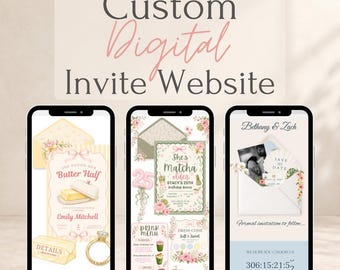
I design modern, editable invitation templates that help make celebrating life's biggest moments a little easier. Whether you're planning a baby shower, birthday, bridal shower, wedding, or another special event, my goal is to create beautiful designs that are simple to personalize and easy to use.
Every template is thoughtfully designed with attention to detail, blending timeless styles with current trends so you can create an invitation that feels uniquely yours. I love creating themes that are both elegant and fun, with designs you'll be excited to send to your family and friends.
All of my invitations are fully editable in Canva, making it easy to personalize your template at your own pace. Please note that the colors of the artwork and illustrations cannot be edited. A free Canva account is all you'll need to access and customize your template.
Thank you so much for stopping by and supporting my small business. I'm honored to be a small part of your special celebrations, and I hope you find the perfect invitation for your event!
Happy celebrating!
Warmly,
InviteMeEdit
Featured items
All items
Reviews
-

-
-
Nancy on Sep 17, 2026
5 out of 5 starsSeller answered all of my questions immediately and was able to edit my invite in no time.
-
-

Mya on Jul 28, 2026
5 out of 5 starsGreat experience! She was very responsive throughout the entire process and made everything so easy. I absolutely love my order and would highly recommend her to anyone!
-
-
Jamie on Jul 13, 2026
5 out of 5 starsBest customer service! She went approve and beyond to create me a template and was suppper helpful on how to edit :)
-
-
-
About InviteMeEdit
Shop policies
Accepted payment methods
Returns & exchanges
More information
Frequently asked questions
How do I publish and share my website invitation?
www.tiktok.com/t/ZP8Gh3Yrw/
You’ll need to create a site address for your event. This will be part of the URL. (This is not shown in the video). If you’ve never publish a website in Canva, you’ll be automatically directed to do this. Think of it like creating a username, it can’t contain spaces, punctuation or special characters, and it must be unique. I recommend choosing something semi-specific to your event (for example, a combination of names and the event type, date). You’ll type in just the text here.
For example, my site address is “InviteMeEdit”. The website will let you know if your chosen site address is already taken, so it may take a few tries to find one that’s available.
How do I link my baby registry or wish list?
Here’s how to link your registry:
https://www.tiktok.com/t/ZP8G4mNNL/
Where can I see my RSVPs?
Here’s how to check your RSVPs:
www.tiktok.com/t/ZP8GhV2kt/
RSVP responses are easiest to manage on a laptop or desktop. On a computer, you’ll find the Responses button in the top-left corner of Canva instead of at the bottom, as shown in the video.
Mobile Users: Try open the linked response sheet within the first 2–3 responses. If you wait until you have more than that Canva will require you to open the linked spreadsheet on a laptop or desktop before you can view any new responses.
Once you’ve opened the linked spreadsheet on a laptop or desktop, it will appear in your Canva Designs, allowing you to access it there moving forward.
How do I customize my template, including changing text, photos, colors, and other elements?
Here’s a “basic editing” video. This shows you how to edit the text and change out the photo (if needed). The photo example is about :16 seconds in:
https://www.tiktok.com/t/ZP8tAXc1c/
Why does it take a few seconds for my template to load?
Internet & Connectivity Notice:
Please note that all website features—including viewing the invitation, RSVP submissions, and registry links—rely on an active internet connection, Wi-Fi, or cellular service.
Because website performance depends on you and your guests' internet connection, device, browser, and Canva's platform, occasional loading delays or connectivity issues may occur. InviteMeEdit is not responsible for issues resulting from internet connectivity, Wi-Fi, cellular service, browser settings, device compatibility, or temporary outages with Canva.
For the best experience, we recommend you and your guests use a stable internet connection and waiting for any confirmation messages before closing the invitation or submitting
What do I do after I purchase my template?
After purchasing, you’ll receive a PDF with a link to access your Canva template. Click the link, sign in or create a free Canva account, and select “Use Template” to open your own editable copy.
Please only click on the link ONCE if you click on it multiple times you’ll be opening multiple documents in Canva and it will get confusing.
If you need to go back to the template it automatically will save in Canva, once you open it in Canva. You’ll then be able to access the template in Canva from here on out. You’ll need a free Canva account to access the template. If you have multiple Canva accounts, please be sure to use the same account throughout, as the template cannot be transferred or accessed interchangeably between accounts.
Why does my invite URL automatically go to my 2nd page?
After publishing, don’t copy the URL from your browser while you’re viewing Page 2 or Page 3. Copy it from the envelope page (page 1).
Check your URL before sending. If it ends in /page-2 or /page-3 remove that portion and test the main URL. It will NOT say page-1.