








ZethStudio

Philippines

3.3k
Sales
We calculate this number using a recency-weighted average of all ratings, with a rating's value decreasing by half each year to best reflect the current experience. 4.7 (327)
4 years
on Etsy
We calculate this number using a recency-weighted average of all ratings, with a rating's value decreasing by half each year to best reflect the current experience. 4.7 (327)
3.3k
sales
4 years
on Etsy
3.3k
Sales
We calculate this number using a recency-weighted average of all ratings, with a rating's value decreasing by half each year to best reflect the current experience. 4.7 (327)
4 years
on Etsy
We calculate this number using a recency-weighted average of all ratings, with a rating's value decreasing by half each year to best reflect the current experience. 4.7 (327)
3.3k
sales
4 years
on Etsy
3346 Sales

Etsy automatically translates most text on the site to your preferred language.

See in original language


Featured items

All items

Etsy automatically translates most text on the site to your preferred language.

See in original language

Announcement

Last updated on May 11, 2025
Zeth Studio

Contact shop owner

Zeth Studio

Reviews

4.7 (327)
Average item review
We calculate this number using a recency-weighted average of all ratings, with a rating's value decreasing by half each year to best reflect the current experience.
Loading

About ZethStudio

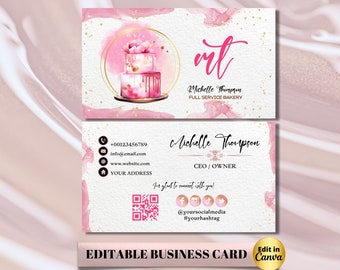
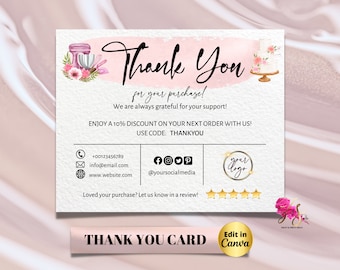
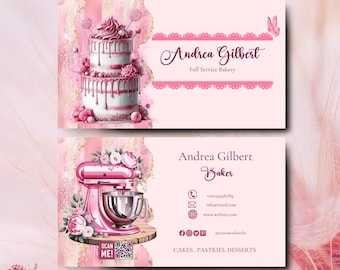
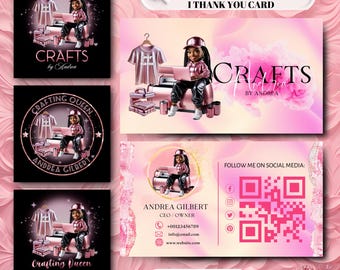
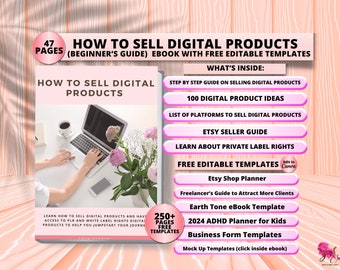
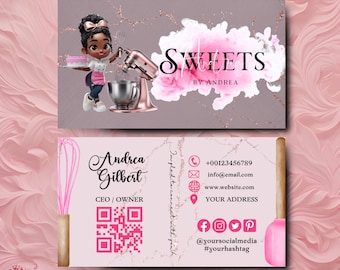
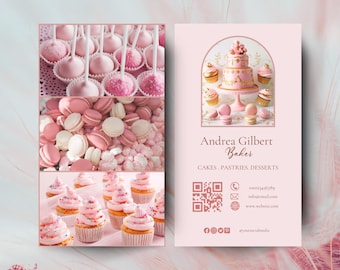
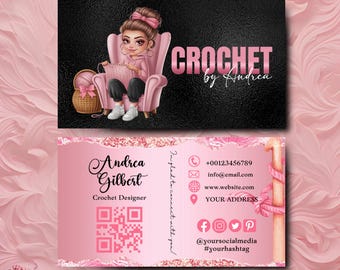
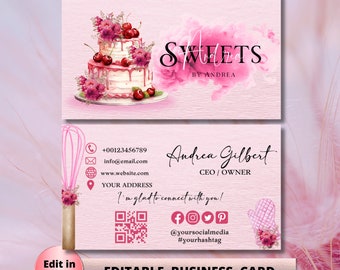
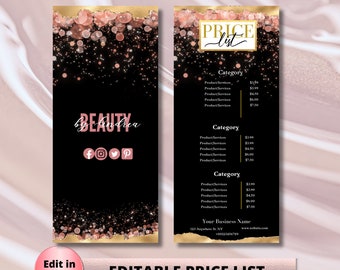
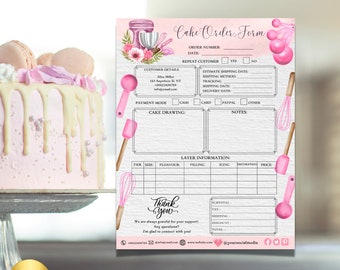
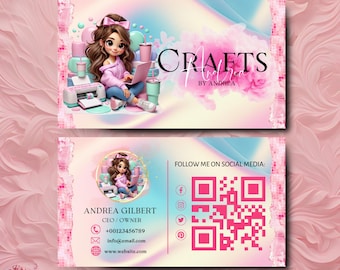
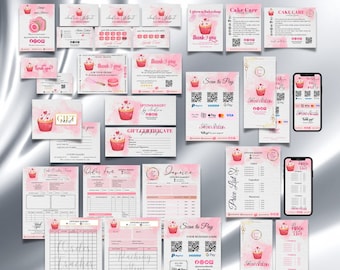
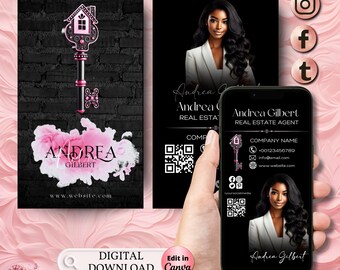
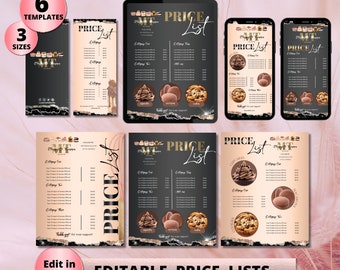
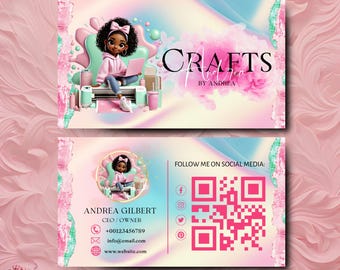
Business Templates You'll Love

Sales 3,346
On Etsy since 2022

Business Templates You'll Love

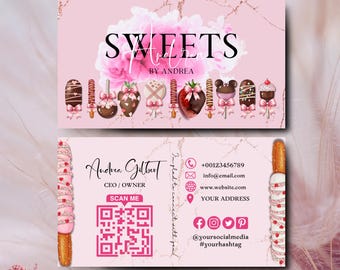
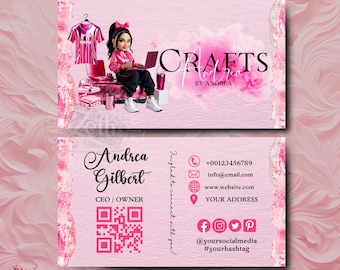
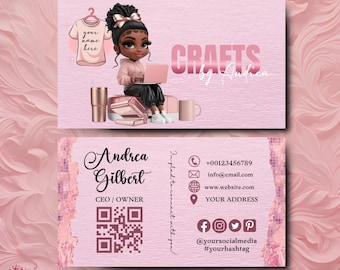
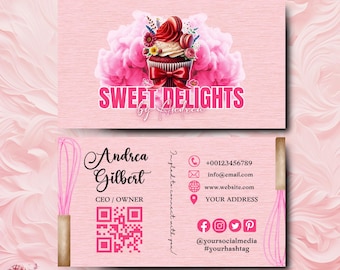
Business Templates, eBooks, Planners, Digital Arts, Editable in Canva Pro

Shop members

  • shop-member-photo
    Zeth

    Owner, Designer

    Welcome to my Etsy shop! I offer digital products for small businesses to help with marketing and productivity. My designs are carefully crafted with love. Thank you for supporting my shop, let's help your business succeed! Hugs, Zeth

Shop policies

Last updated on Sep 9, 2022

Digital downloads

Instant downloads
Your files will be available to download once payment is confirmed. Here's how.

Payment options

Secure options
Paypal Visa Mastercard Discover Apple Pay Klarna Giftcard
Accepts Etsy Gift Cards and Etsy Credits
Etsy keeps your payment information secure. Etsy shops never receive your credit card information.

Returns & exchanges

See item details for return and exchange eligibility.

Cancellations

Cancellations: not accepted

Please contact the seller if you have any problems with your order.

More information

Last updated on Dec 17, 2025

Frequently asked questions

What is Canva, and why should I use it for editing my business printables?

Canva is an online graphic design platform that allows users to create and edit various visual content, including business printables like brochures, flyers, social media graphics, and more. It provides a user-friendly interface and a wide range of design templates, elements, and tools, making it convenient for non-designers to create professional-looking materials.

How do I sign up for a Canva account?

Signing up for a Canva account is free and easy. Simply visit Canva's website (www.canva.com) and click on the "Sign up" button. You can create an account using your email address or sign up with your Google or Facebook account.

How can I access Canva Pro for free and use it for 30 days?

To access Canva Pro for free and enjoy a 30-day trial, visit Canva's website (www.canva.com) and sign up for a new account. During the registration process, you will be offered the option to try Canva Pro for free. Select this option, and you'll have access to all the premium features and resources for 30 days without any charges. Remember to cancel the subscription before the trial period ends if you don't wish to continue with Canva Pro.

What are the basic editing tools available in Canva, and how do I use them?

Canva offers a variety of editing tools to customize your business printables. Some common tools include text editing, image cropping, resizing and rotating elements, changing colors, and adding shapes and lines. Canva provides an intuitive drag-and-drop interface, so you can simply select the element you want to edit and use the available options in the toolbar to make the desired changes.

Can I edit the text, colors, and images in the digital business printables I purchase from your Etsy shop?

Yes, all the digital business printables purchased from our Etsy shop are editable in Canva. You can easily modify the text, colors, and images to suit your branding or personal preferences.

How do I edit text in Canva?

To edit text in Canva, follow these steps:
* Select the text element you want to edit on the design canvas.
* Click inside the text box to make changes to the text content.
* Use the options in the top toolbar to change the font, size, alignment, color, and other text attributes.
* You can also apply text effects like bold, italic, underline, or adjust letter spacing and line height.
* To resize or reposition the text box, click and drag the corners or sides of the text box accordingly.

How do I edit colors in Canva?

To edit colors in Canva, use the following steps:
* Select the element (text, shape, or graphic) you want to change the color of.
* Click on the "Color" button in the top toolbar.
* Choose a color from the pre-defined color palettes or click on the "+" button to enter a custom color.
* You can also use the eyedropper tool to pick a color from your design or use the HEX or RGB values to specify a specific color.

How do I edit images in Canva?

To edit images in Canva, follow these steps:
* Select the image element you want to edit on the design canvas.
* Click on the "Filter" button in the top toolbar to apply pre-set filters or manually adjust brightness, contrast, saturation, and other settings.
* Use the "Crop" button to resize and reposition the image within the frame.
* You can also rotate the image using the circular arrow handle.
* To replace the image with your own, click on the "Replace" button in the top toolbar and choose an image from your uploads or Canva's library.

How do I upload images and photos in Canva?

To upload images and photos in Canva, follow these steps:
* Click on the "Uploads" tab located in the left sidebar of Canva.
* Click on the green "Upload an image or video" button.
* Choose the desired image or photo file from your computer.
* The uploaded image will be added to your Canva library.
* Drag and drop the image onto your design canvas to use it.

How do I download a template in Canva?

To download a template in Canva, use the following steps:
* Ensure you're on the design canvas of the template you want to download.
* Click on the "Download" button located in the top-right corner.
* Choose the file format you prefer (e.g., PNG, JPEG, PDF, etc.).
* Select the quality and resolution settings.
* Click the "Download" button, and the template will be saved to your computer.